How to import MyFitnessPal data into Fit Shapes
Export your MyFitnessPal meal totals and weigh-ins, review the ZIP in Fit Shapes, and import your history without duplicating days.
You can import meal totals and weigh-ins from MyFitnessPal’s export ZIP. Each meal comes across as one entry, not individual foods. Recipes, exercise, goals, and targets are not imported.
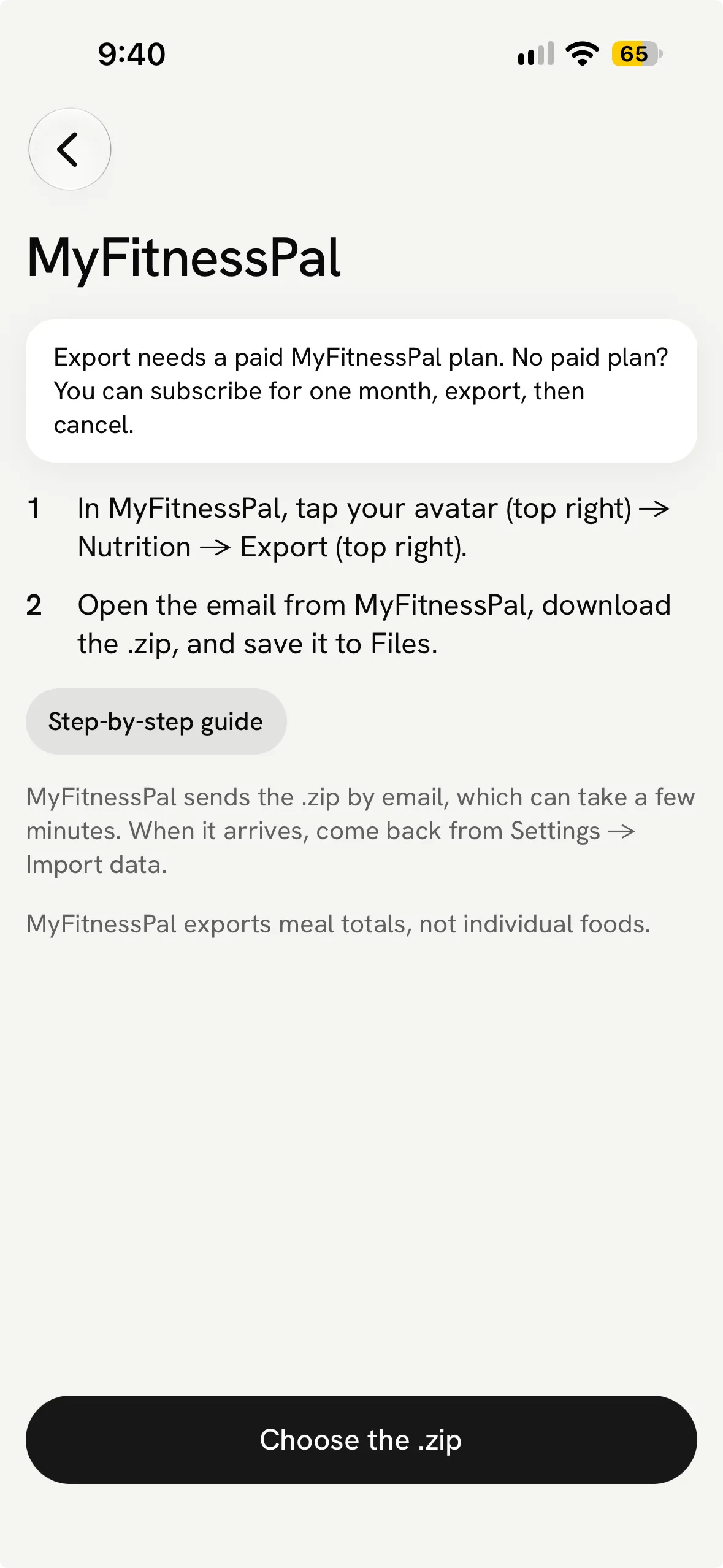
The file export needs MyFitnessPal Premium or Premium+. A printable diary report is a different format; use the export ZIP for these steps.
Export on iPhone
- In MyFitnessPal, open More. If you do not see More, tap your profile icon at the top right.
- Open Nutrition, then tap Export at the top right.
- Tap Date Range, choose the dates you want, then tap Export My Information.
- Open the email from MyFitnessPal, download the ZIP, and save it to Files.
Export on Android
- In MyFitnessPal, open More, then Progress or Nutrition.
- Tap the Export icon at the top right. It looks like a sheet of paper with a folded corner.
- Confirm your email address, choose your date range, then tap Export.
- Open the email from MyFitnessPal and download the ZIP to Downloads.
You can also export from MyFitnessPal’s website under Reports → Export. See MyFitnessPal’s export instructions for each platform.
Import into Fit Shapes
- In Fit Shapes, open Account → Import data → MyFitnessPal.
- Tap Choose the .zip and select the file you saved. Leave it zipped.
- On Review import, check the date range, entries, weigh-ins, and any skipped days.
- If the file contains weigh-ins, set Weights in this export are in to Pounds or Kilograms, matching MyFitnessPal. Check that the latest weigh-in shown matches what you logged.
- Tap Import when the preview is correct.
The ZIP also contains exercise and other measurement data. Fit Shapes reads its meal totals and weights; it does not import everything in the ZIP. Keep your original export until you have checked the imported history.
Understanding skipped days
If a day already has food in Fit Shapes, the import keeps that day’s existing food and skips the incoming meal totals for that date. An existing weigh-in also takes precedence over an imported weight on the same date.
The example below uses fictional sample data: 90 days of meal totals and weigh-ins. This account already has food on 79 of those days, leaving 11 food days to import. The 360 food entries count describes the file’s contents, not the number of new entries that will be added. Read it alongside the skipped-days message.
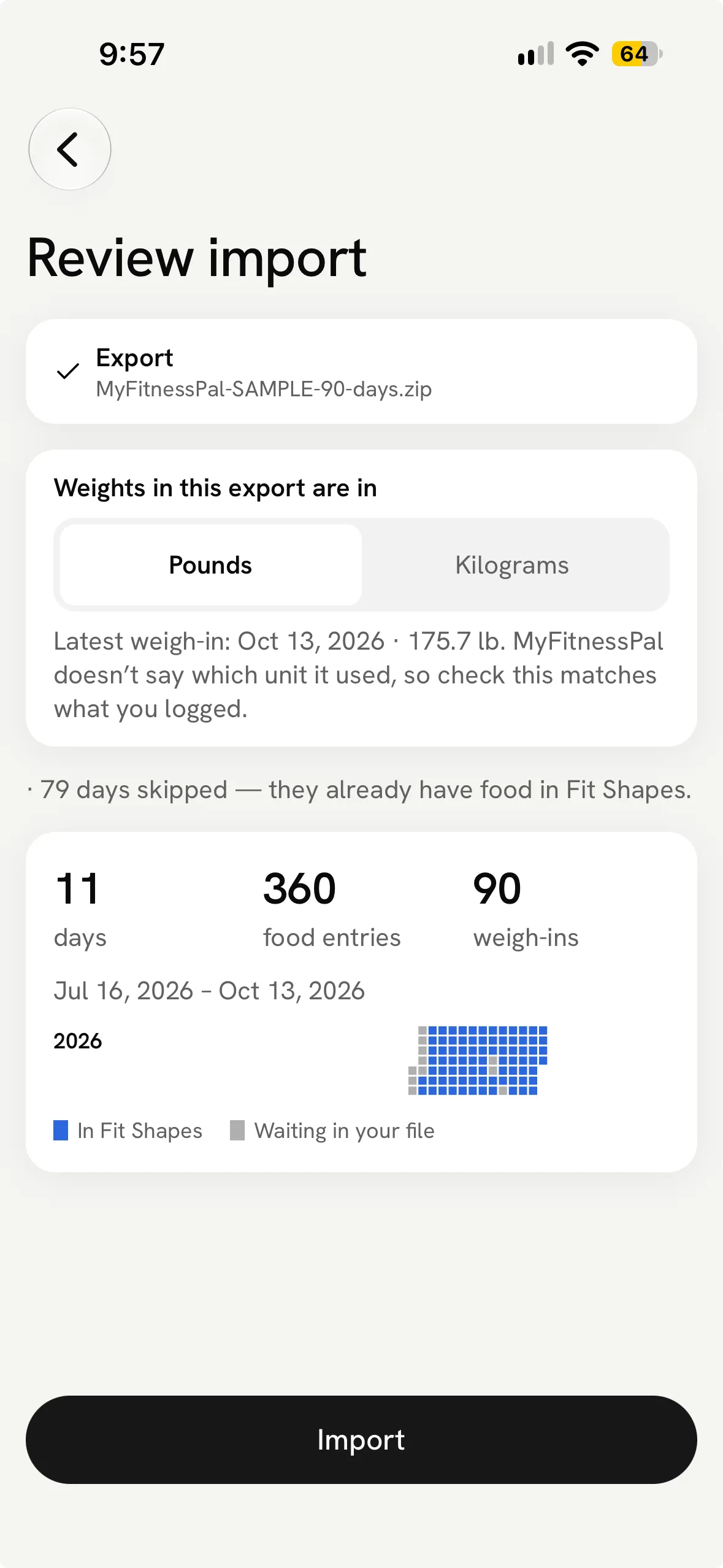
MyFitnessPal does not identify the weight unit in its export. Choose pounds or kilograms to match what you logged; if you are unsure, check MyFitnessPal before importing.
After you tap Import, open an imported day and compare its meal totals with your export. Check a weigh-in too, if your file contains one.
If you need help
For an unrecognized file or a large export, see import troubleshooting. You can also choose another import source.
Recent food and weight history can help estimate your expenditure. History ending more than six weeks ago still fills your log but cannot set today’s estimate. Learn how Adaptive Targets work.
You can export your Fit Shapes history as a CSV.
Still need help?
We read every message. If you need help with your account, include your member number. If you do not have one yet, include the email on your account.
[email protected]